How DiscoClocker Works
A step-by-step walkthrough from initial setup to daily clock-ins.
① Add the bot to your Discord server
Add the bot to a Discord server where you have admin permissions.
Select the server, review the requested permissions, and approve.
The bot only requests the minimum permissions needed for attendance tracking.
② Log in to DiscoClocker
Log in directly with your Discord account.
No email address or password required.
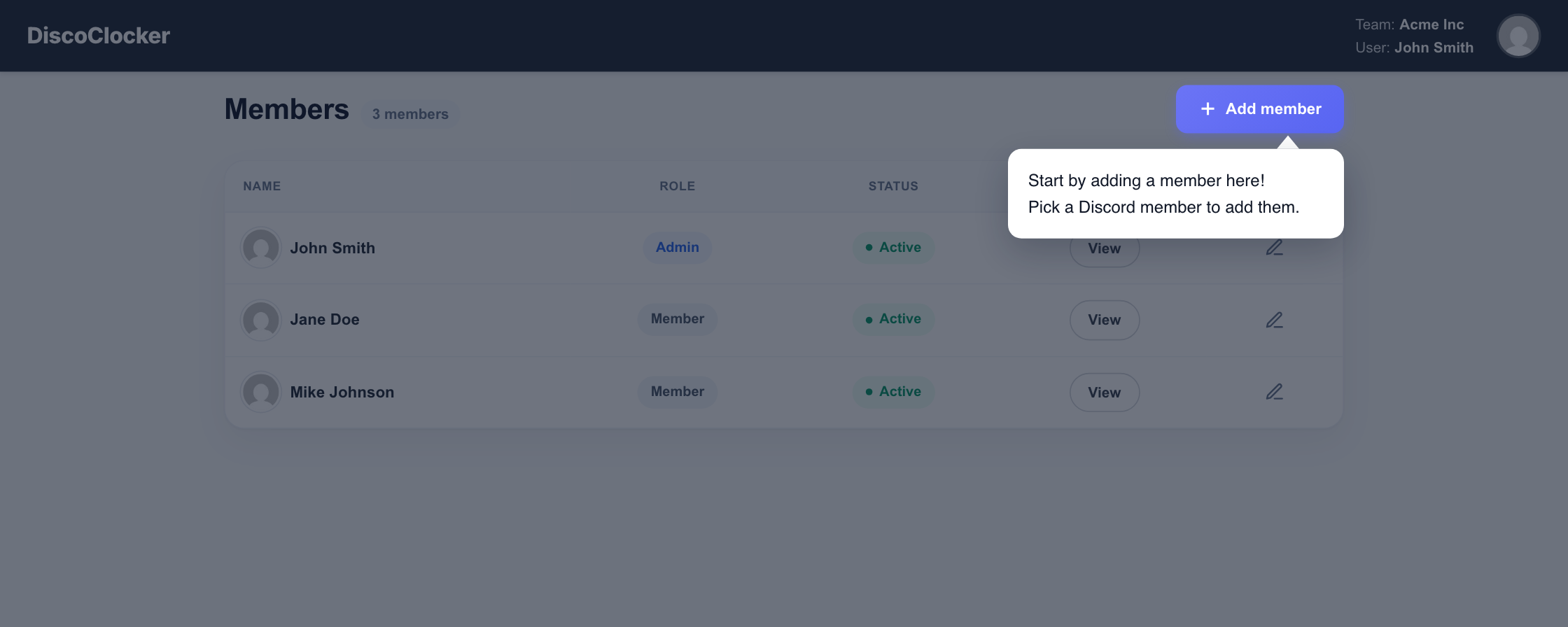
③ Register your members
From "+ Add member" in the dashboard, select Discord members to register them.
Once registered, they can clock in and out right away with slash commands.
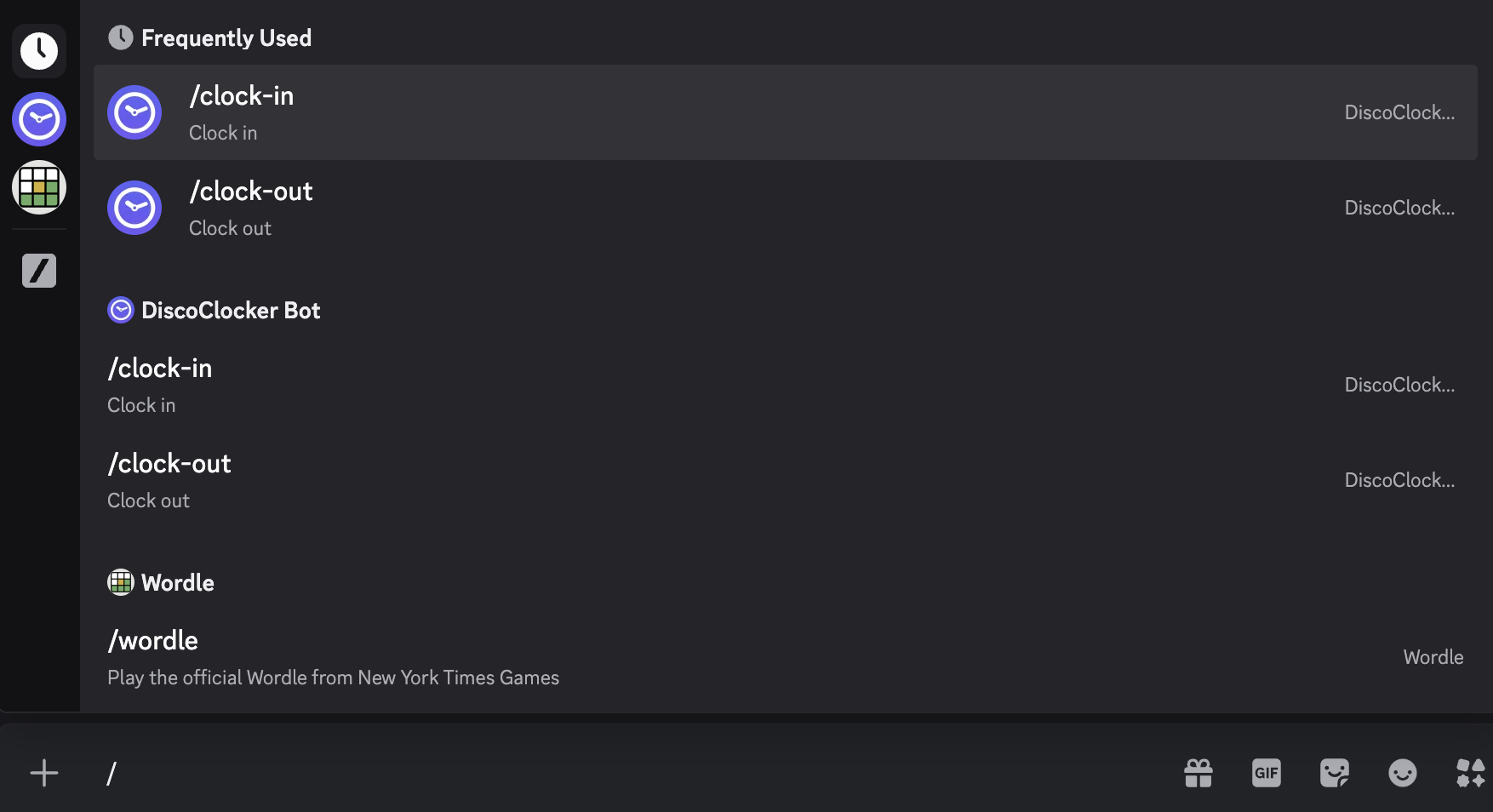
④ Clock in and out with slash commands
From here, you'll be working right in Discord.
Type "/" to see the available commands.
You can clock in and out as many times as you need in a day. To take a break, just clock out and clock back in when you return.
⑤ Review attendance in the dashboard
Clock-in time, clock-out time, and total hours are calculated automatically from your entries.
Monthly totals are available too.
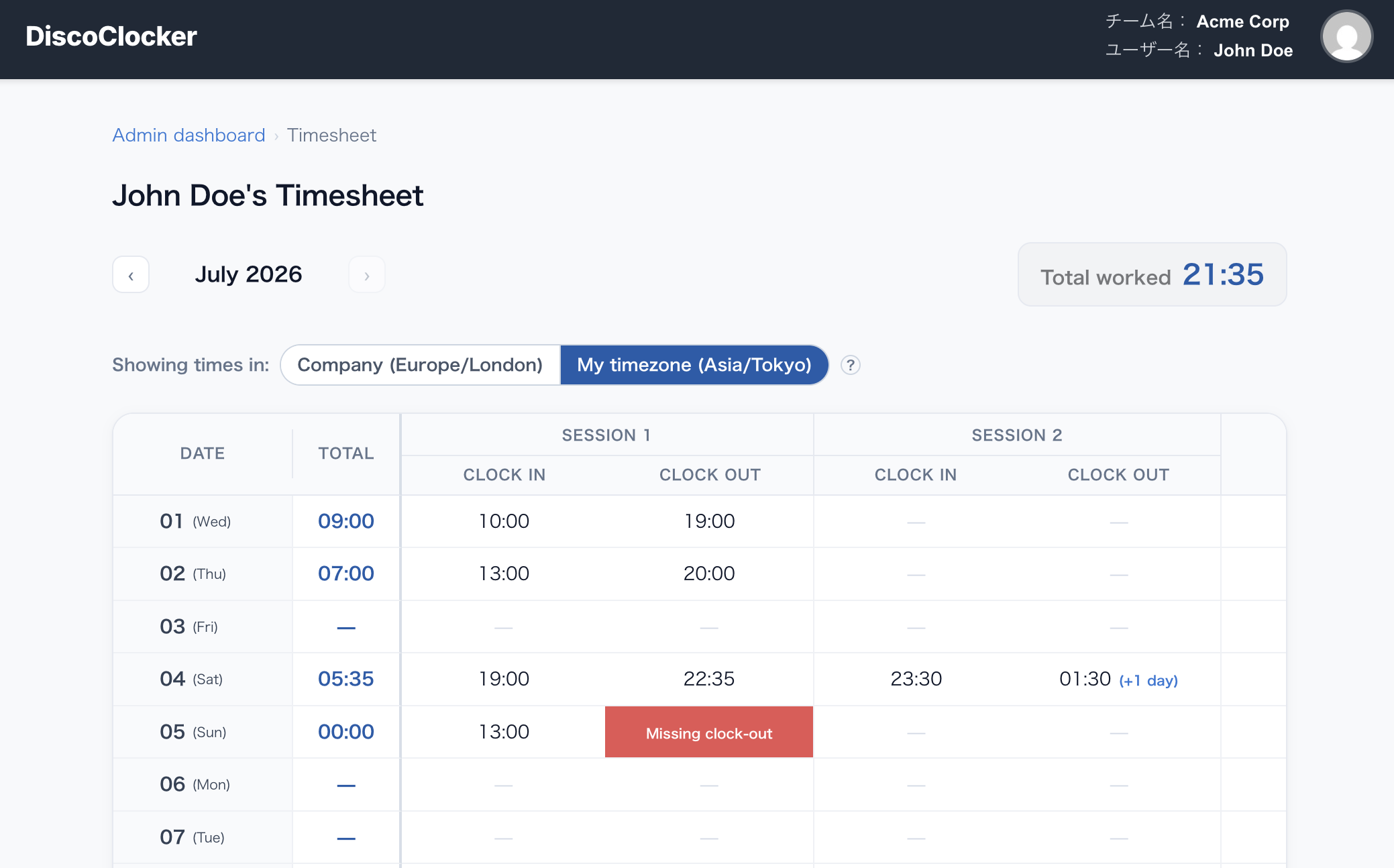
⑥ Edit attendance from the dashboard
Missed or incorrect entries can be corrected later from the dashboard.
Clock-in and clock-out times can be edited directly, and every edit is logged.
⑦ Admin member management
Accounts with admin permissions can do the following.
- Add or deactivate members
- View each member's attendance
- Correct attendance entries
- Review and resolve clock-in errors
⑧ Attendance errors and notifications
Errors such as missed clock-outs or invalid timestamps appear in the dashboard.
You can correct them directly from there.